The table is known
The venue and table number are already set when the link opens.
Guests scan the QR, browse the menu, place an order, call a waiter or request the bill — while the team sees the table and status of every request.
Everything you need at the table is right here.
From the guest’s seat
A branded mobile menu where guests choose items, add notes, send the order or request service, and follow the status without downloading an app.
The venue and table number are already set when the link opens.
Choose items and quantities, add notes and review the total before sending.
Waiter, bill or water requests stay clear from received to completed.
Arabic, English, French and Russian in the same experience.
Start from the guest screen and watch the request move through waiter and management.
Requests from your tables appear here immediately.
Waiting for the first guest request
● Live QServe experience, tap around
What makes operations easier
QServe goes beyond displaying a menu. Guests order from the table, the team sees every request with its table and status, and you manage menus and offers in one place.
Guests add items and quantities, leave notes, review the total and send the order to the team.
Waiter, bill, water and quick requests come from the same page and the same table.
Create offers and combos with pricing and availability that appear inside the ordering experience.
Arabic, English, French and Russian, with the interface and menu switching together.
The team sees what is received, in progress and completed while guests can follow their request.
Update categories, prices, images, services and offers, then publish the changes from one place.
From the team side
Instead of waving across the room, the team sees the request, table number and status in one place.
Chat with us on WhatsAppTable 12Request billNow
Table 7Call waiter1m
Table 4Water3m
Every venue has a character
Name, colors, menu and services are shaped around the venue, whether it is a café, restaurant or lounge.
Everything guests need with coffee or breakfast on one page.
Guests find the menu and request service from the same table.
Show the services that fit the venue.
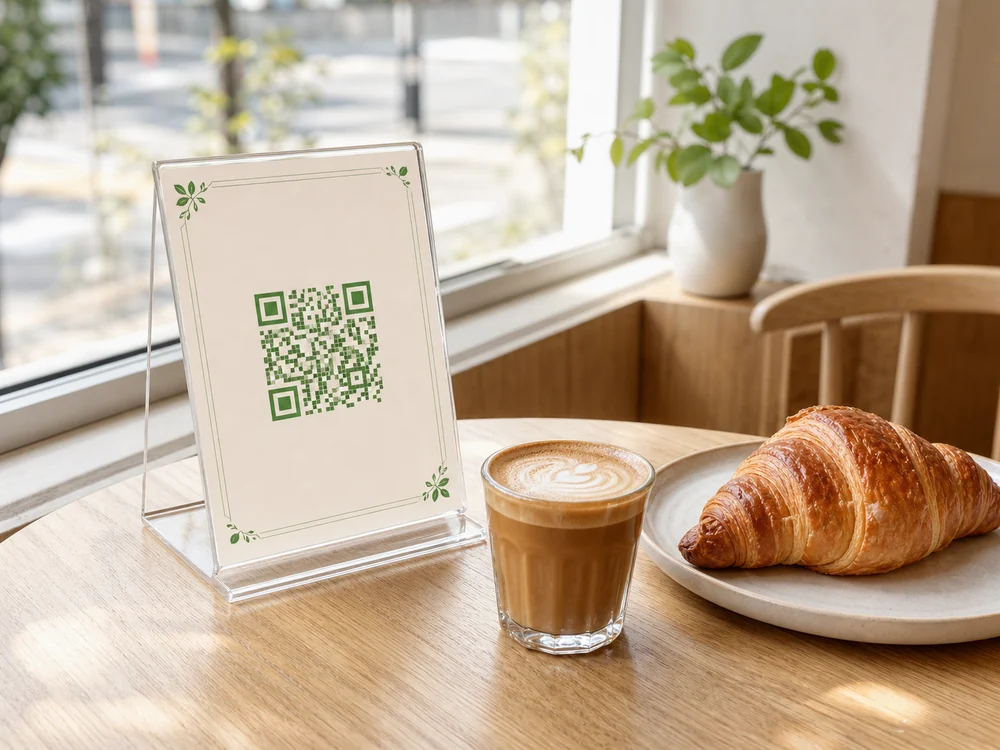
From menu to table
Brand, menu and table services come together in one guest experience, ready to review before the QR is printed.
Brand, menu, languages and the services guests need are set up together.
See the home, menu and request flow exactly as guests will.
Each table can open with its venue and table number already set.
Before you start
The essentials of the table experience, from opening the menu to requesting service.
No. The QR opens QServe directly in the browser on the guest’s phone.
That is the recommended setup. The link opens with the venue and table number already set.
Yes. Show waiter, bill, water, Wi-Fi or any request that suits the venue.
Yes. The interface and menu switch together across the languages available for the venue.
Yes. Name, colors, voice, menu and services are set for each venue.
No. The same QR opens the latest published menu.
Let’s set up QServe for your venue
On WhatsApp, tell us about the venue, table count and services you need and we’ll recommend the right QServe setup. Prefer email? It’s right below.